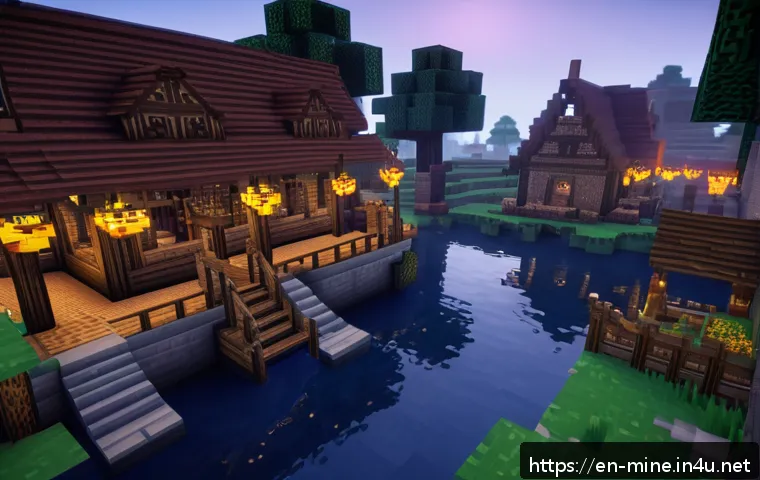
Mastering Minecraft commands can completely transform your gameplay experience, unlocking creative possibilities and streamlining complex tasks. Whether you’re building intricate structures, managing mobs, or customizing your world, commands offer powerful shortcuts that save time and boost efficiency.

Even casual players can benefit from learning a few essential commands to enhance fun and control. Over the years, Minecraft has expanded its command capabilities, making it easier than ever to experiment and bring your ideas to life.
Curious about how to wield these tools effectively? Let’s dive in and explore the ins and outs of Minecraft commands together!
Unlocking the Power of Teleportation Commands
Precision Movement with /tp
Mastering the /tp command changes how you navigate your Minecraft world. Instead of wandering aimlessly or sprinting through dangerous terrain, you can instantly teleport to exact coordinates, other players, or specific entities.
What I found incredibly handy is using relative coordinates — it lets you move a set distance from your current location, which is perfect when exploring caves or building in tight spaces.
For example, typing “/tp ~10 ~-5 ~20” shifts you 10 blocks east, 5 blocks down, and 20 blocks south. This kind of control is a lifesaver during time-sensitive builds or when you want to escape mobs quickly.
Teleporting Entities Beyond Players
It’s not just about moving yourself around. You can teleport mobs, items, or even projectiles using the same command. I once used /tp to herd a group of villagers into a custom trading hall without chasing them for hours.
Just target the entities with selectors like @e[type=villager] and specify the destination coordinates or player. This technique opens up creative ways to manage your world’s inhabitants or automate mob farms with ease.
Combining Teleportation with Other Commands
Teleportation can be a stepping stone to more complex command chains. I often pair /tp with /execute to run commands at a target’s location, or with /summon to instantly spawn entities right where I need them.
This combo not only saves time but also lets you create dynamic events, like teleporting a mob right before triggering a trap. Experimenting with these layered commands can truly elevate your gameplay beyond the basics.
Streamlining Building with Fill and Clone Commands
Rapid Construction Using /fill
Building massive structures block by block can be a grind, but /fill speeds things up dramatically. When I built a fortress wall, instead of placing thousands of stones manually, I used /fill to replace large volumes with a single command.
It supports a variety of blocks and even allows replacing specific blocks within an area, which comes in handy when fixing mistakes or customizing patterns.
Learning how to specify the two corners of your fill region accurately is key — otherwise, you might end up filling way more than intended.
Copying and Moving Builds with /clone
The /clone command is a game-changer for duplicating structures or moving parts of your world without rebuilding. I used it to replicate a detailed house design multiple times across my village, saving days of work.
You select a source area and a target destination, and the command copies everything in between, including blocks with data like chests and furnaces. Just be careful with overlapping regions, as that can cause unexpected block replacement.
Creative Uses and Limitations
While /fill and /clone are powerful, they come with some quirks. For example, /fill can sometimes lag your game if the volume is too large, and /clone won’t copy entities like mobs or redstone signals directly.
I usually break big projects into smaller chunks to avoid these issues. Also, combining these commands with structure blocks or functions can automate building even further, but that requires a bit more advanced knowledge.
Managing Your World with Effective Game Rule Tweaks
Customizing Gameplay Rules
Game rules let you fine-tune how Minecraft behaves without mods. From disabling mob griefing to changing daylight cycles, these commands give you control over the environment.
I personally like setting “doDaylightCycle” to false when building, so the sun doesn’t move and mess with my lighting setups. Tweaking “mobGriefing” is another favorite because it protects my crops from creeper explosions and Endermen teleporting blocks.
Improving Performance and Experience
Some game rules directly affect performance, especially on servers or lower-end devices. Turning off things like “doEntityDrops” or “doFireTick” can reduce lag by limiting unnecessary entity updates.
When I run a small server for friends, I toggle these to keep gameplay smooth while still maintaining fun. It’s a balance between realism and performance that every player should explore.
Persisting Rules and Automating Changes
Once you set game rules, they persist through your world’s sessions, but you can also automate changes with command blocks or datapacks. I’ve set up a command block system that adjusts rules automatically depending on the time of day or player actions, creating a more immersive experience.
This level of customization can make your Minecraft world feel truly unique.
Using Selectors and Arguments to Target Entities Precisely
Understanding Selector Basics
Selectors like @p, @a, @r, and @e allow you to target players or entities efficiently. For instance, @p targets the nearest player, which is great for single-player commands, while @a targets all players, perfect for multiplayer announcements or effects.
I often use @r to randomly select a player for mini-games or challenges, which adds an element of surprise.
Filtering with Arguments
Arguments refine selectors to narrow down targets based on criteria like distance, scores, or entity types. When I wanted to heal only players with low health, I used @a[nbt={Health:10f}] — it’s a bit tricky but super powerful once you get the hang of it.
You can also filter by team, gamemode, or even custom tags, letting you create complex command sequences that interact only with specific groups or entities.
Practical Examples in Gameplay
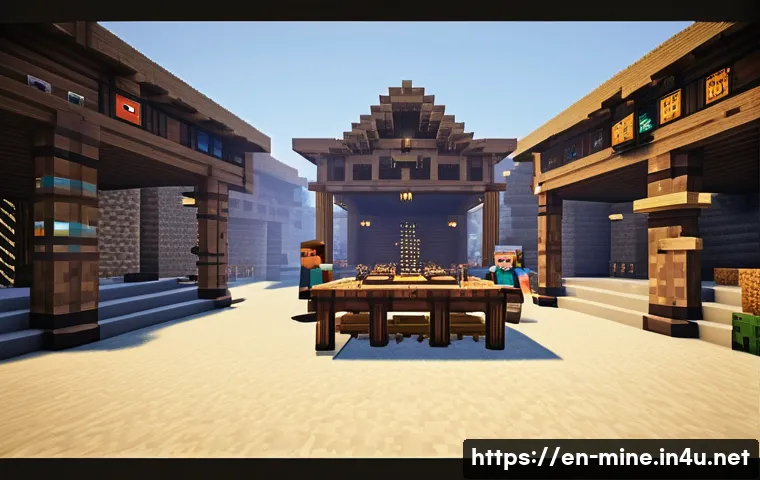
Using selectors creatively opens doors to fun mechanics. For example, I created a command that teleports all zombies within a 20-block radius to a trap, or one that gives buffs to only players in a certain area.
These kinds of commands make your Minecraft experience feel more dynamic and responsive to what’s happening around you.
Enhancing Your World with Summon and Effect Commands
Summoning Entities with Custom Attributes
The /summon command isn’t just about spawning mobs; it allows you to customize their properties extensively. I’ve summoned skeletons with enchanted bows or creepers that don’t explode instantly, perfect for creating unique challenges or story elements.
You can add data tags to control health, equipment, potion effects, and more, giving you near-unlimited creative freedom.
Applying Status Effects for Gameplay Tweaks
Commands like /effect let you grant buffs or debuffs instantly. Whether you want to give yourself night vision for exploring caves or slow down enemies in a PvP arena, this command is invaluable.
I’ve used it during builds too, applying regeneration so I don’t have to worry about fall damage or accidental mob hits.
Combining Summon and Effect for Custom Scenarios
When you pair /summon with /effect, you can create memorable gameplay moments. I once designed a boss fight where the summoned boss had resistance and strength effects, making it a real challenge to defeat.
Setting these up requires some trial and error, but the satisfaction of seeing your custom encounter come alive is worth every bit of effort.
Essential Command Syntax and Best Practices
Understanding Command Structure
Commands follow a specific syntax, starting with a slash, followed by the command name and parameters. For example, “/give @p diamond_sword 1” gives the nearest player one diamond sword.
Knowing how to format arguments and use brackets correctly is crucial to avoid errors. I learned this the hard way by accidentally spawning hundreds of chickens once because I missed a parameter!
Using Command Blocks for Automation
Command blocks are a fantastic way to automate repetitive tasks or create in-game events. I’ve set up farms that automatically harvest crops and teleport items to chests using a chain of command blocks.
They can be triggered by redstone, timers, or player actions, allowing you to build complex contraptions without constant manual input.
Keeping Commands Organized
When your command repertoire grows, it’s easy to lose track of what does what. I recommend keeping a separate text file or a book and quill in-game listing your most-used commands and their parameters.
This habit saved me from many frustrating moments where I forgot the exact syntax or selector arguments. Plus, sharing your command setups with friends becomes a breeze.
Common Commands Cheat Sheet for Quick Reference
| Command | Purpose | Example Usage | Notes |
|---|---|---|---|
| /tp | Teleport player or entity | /tp @p 100 64 200 | Use relative (~) coordinates for offsets |
| /fill | Fill an area with blocks | /fill 10 64 10 20 70 20 stone | Be cautious with large volumes to avoid lag |
| /clone | Copy and paste blocks | /clone 10 64 10 20 70 20 30 64 30 | Doesn’t clone entities or redstone signals |
| /gamerule | Change game settings | /gamerule doDaylightCycle false | Persists across sessions |
| /effect | Apply status effects | /effect give @p night_vision 60 1 | Duration in seconds, amplifier starts at 0 |
| /summon | Spawn entities with custom data | /summon zombie ~ ~1 ~ {Health:40.0f} | Customize using NBT tags |
Conclusion
Teleportation and command mastery truly transform how you experience Minecraft, making navigation, building, and world management far more efficient and enjoyable. From precise movements to creative automation, these tools open up endless possibilities. With practice, you’ll find yourself crafting unique gameplay moments that go beyond the basics. Embrace these commands, and watch your Minecraft world evolve in exciting ways.
Useful Tips to Remember
1. Always double-check coordinates before teleporting or filling to avoid unintended changes or lag.
2. Use relative coordinates (~) when exploring or building near your current position for quicker adjustments.
3. Combine selectors and arguments to target exactly the entities or players you want, making commands more efficient.
4. Break large fill or clone tasks into smaller sections to prevent game lag and errors.
5. Keep a command reference handy, whether in a text file or in-game book, to save time and reduce mistakes.
Key Takeaways
Understanding and leveraging teleportation commands can dramatically speed up gameplay and exploration. Commands like /fill and /clone are powerful building aids but require careful use to avoid performance issues. Tweaking game rules helps customize your world’s behavior and improve performance, especially on servers. Mastering selectors and arguments allows precise control over command targets, enhancing creativity and automation. Lastly, organizing your commands and experimenting with combinations unlocks the full potential of Minecraft’s command system for both casual and advanced players alike.
Frequently Asked Questions (FAQ) 📖
Q: What are the most useful Minecraft commands for beginners to start with?
A: For beginners, commands like /gamemode to switch between creative and survival, /tp for teleporting, and /give to get items instantly are game changers.
These commands help you explore, build, and experiment without the usual grind. I remember when I first used /tp to quickly move around my world—it saved me so much time and made exploring way more fun.
Starting with these basics can make your gameplay smoother and more enjoyable right away.
Q: How can commands improve building and creativity in Minecraft?
A: Commands let you build faster and with more precision. For example, /fill can replace large areas with blocks instantly, and /clone lets you duplicate complex structures without rebuilding them by hand.
I once recreated an entire medieval village using /clone, which would have taken me days otherwise. These tools unlock creative freedom and help bring your ideas to life much more quickly, allowing you to focus on design rather than tedious placement.
Q: Are commands only for advanced players, or can casual players benefit too?
A: Definitely not just for advanced players! Casual players can benefit hugely by learning even a few simple commands. They make everyday tasks like getting resources, managing mobs, or fixing mistakes much easier.
For instance, using /time set day can quickly fix a night that’s too dangerous for you to explore. From my experience, commands reduce frustration and add a layer of control that makes the game more fun and less grindy, regardless of your skill level.